5. Testing (platform, browser, device)
5.1. BrowserShots
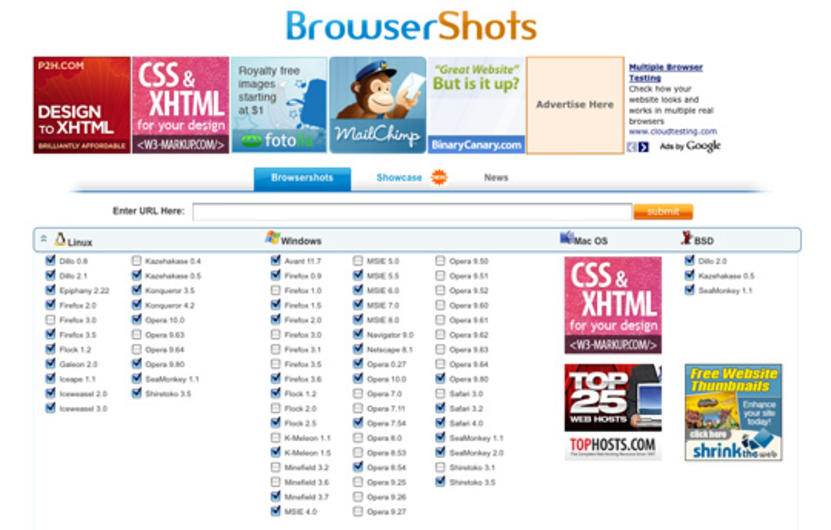
BrowserShots is good to use if you have a mostly-static website that you won’t be modifying every couple of minutes.
The concept is simple – enter a website URL, enter the browser(s) you’d like to test, wait a few minutes, and you’ll be able to see how it displays on each of those browser(s).
Best of all, it’s free.
The problem with BrowserShots is that it’s slow, sometimes inaccurate, and does not offer any information aside from a simple screenshot. But for those with simple websites, it should be enough.
BrowserShots is available as a web platform.
5.2. Remote Preview
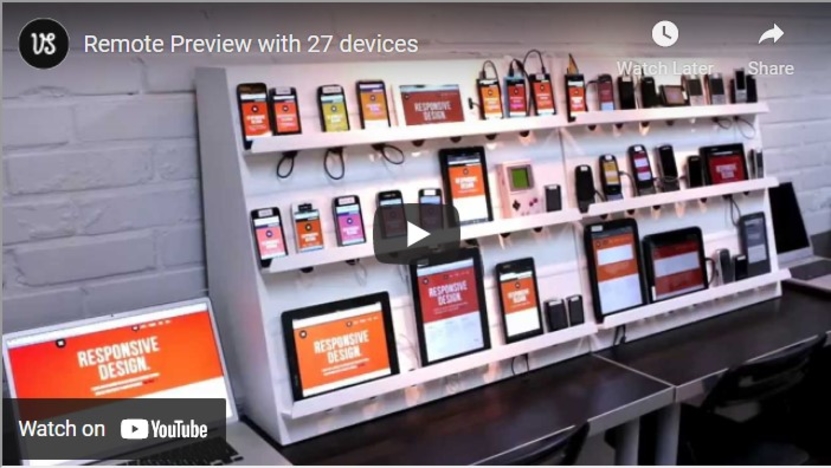
Remove Preview is similar to Browser Shots, except with a focus on mobile devices.
The software is very simple – you download the program, specify which files should be loaded, and press a button.
Remote Preview will display screenshots for your website (the files you loaded) on all of the platforms selected, which include Android, Blackberry, iOS, Maemo, Meego, Symbian, Windows Phone and WebOS.
Although Remote Preview doesn’t give you real-time displays of how your website behaves, the screenshots will be enough for the majority of webmasters to rest easy knowing their websites are displaying properly.
Upgrade to a paid piece of software like Ghostlab if you need more functionality than that.
Remote Preview is available for Windows.